- DATE:
- AUTHOR:
- The folks at Scrut
Question categories now imported and displayed in Questionnaire Automation
What's new?
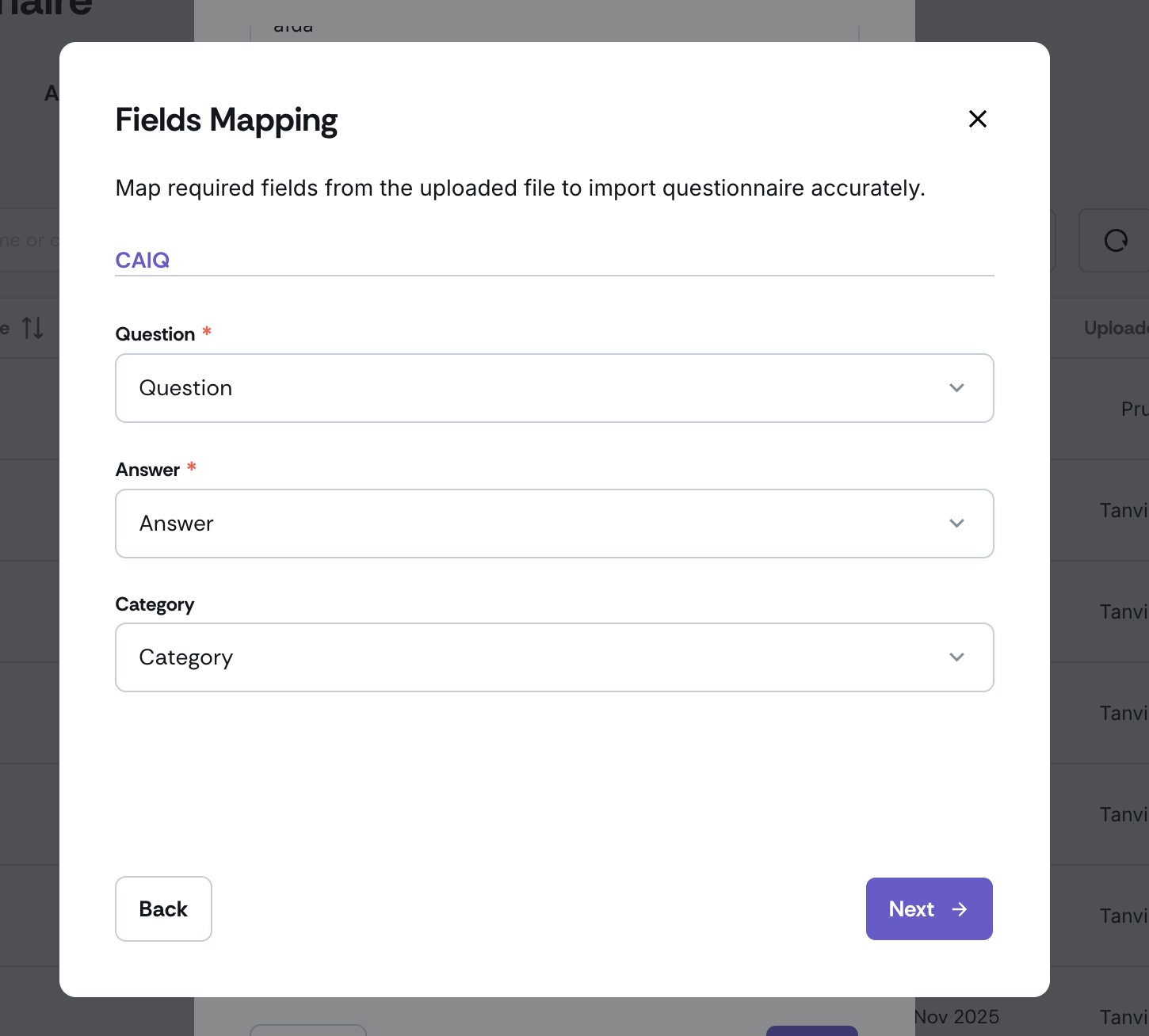
The Questionnaire Automation module now supports importing question categories. During the column mapping step of a questionnaire import, you can optionally map a column to the Question Category field. After import, each question card shows the category as a read-only label.
Why was this needed?
Previously, when questionnaire files included a category column, Scrut couldn't ingest this information, making it difficult to categorize questions by theme. For long questionnaires with 50 or more questions, this made navigation difficult, and many teams kept the original spreadsheet open alongside Scrut just to track which category each question belonged to. With category labels now visible on question cards, you can organize questionnaires with ease.
How it works
Click Trust → Questionnaire on the left navigation panel.
Go to the Questionnaire tab and click Add Questionnaire → Create in Scrut to upload a spreadsheet.
In the column mapping step, locate the optional Question Category field and map it to the appropriate column in your file. If your file has multiple sheets, map the category column independently for each sheet.
Complete the import. Each question card will display the mapped category as a read-only label.
For categories longer than 15 characters, hover over the truncated label to see the full text in a tooltip.
Hierarchical categories displayed with the '>' separator are imported as-is to support nested topic structures.
For questions without a category value, a placeholder is automatically shown to keep the layout consistent across all cards.
Need help?
Your Customer Success Manager (CSM) is always ready to help if you need assistance. Explore all recent product updates → View now.